An Introduction to the Python Programming Language

What is Python?

Python is a high-level, interpreted programming language known for its simplicity and readability. Created by Guido van Rossum and first released in 1991, Python has become one of the most popular programming languages in the world. Its syntax is designed to be easy to understand and write, making it an excellent choice for beginners and experienced developers alike.


Why Learn Python?

Python's popularity is due to several key features:

Easy to Learn and Use: Python's syntax is straightforward, making it accessible for beginners.

Versatile: Python can be used for a wide range of applications, including web development, data analysis, artificial intelligence, scientific computing, and more.

Extensive Libraries and Frameworks: Python has a vast ecosystem of libraries and frameworks that simplify complex tasks.

Community Support: Python has a large, active community that contributes to its growth and provides support through forums, tutorials, and documentation.


Setting Up Python

Before you can start programming in Python, you need to set up your development environment. Here's a step-by-step guide to get you started:


Installing Python

Download Python: Go to the official Python website (https://www.python.org/) and download the latest version of Python. Python 3.x is recommended as Python 2.x is no longer supported.

Run the Installer: Run the downloaded installer. Make sure to check the box that says "Add Python to PATH" before clicking "Install Now".

Verify the Installation: Open a command prompt or terminal and type python --version. You should see the version of Python you installed.


Setting Up an Integrated Development Environment (IDE)

An Integrated Development Environment (IDE) is a software application that provides comprehensive facilities to programmers for software development. Here are some popular Python IDEs:


PyCharm: A powerful IDE for Python with many features, including code completion, debugging, and project management.

Visual Studio Code: A lightweight, customizable code editor with Python support.

Jupyter Notebook: An open-source web application that allows you to create and share documents containing live code, equations, visualizations, and narrative text.


Writing Your First Python Program

Once you have Python installed and an IDE set up, you're ready to write your first Python program.


Open Your IDE: Launch your preferred IDE.

Create a New File: Create a new Python file with a .py extension.


Write Code: Type the following code into your file:

print("Hello, World!")


Run Your Program: Save the file and run it. You should see the output:


Hello, World!

Congratulations! You've just written and executed your first Python program.


Understanding Python Syntax

Python syntax refers to the set of rules that defines how a Python program is written and interpreted. Here are some basic concepts:


Indentation

Python uses indentation to define blocks of code. Consistent indentation is crucial as it determines the structure of your code.


Code:

if True:

print("This is true")


Comments

Comments are used to explain code and are ignored by the interpreter. Single-line comments start with a #.

 Code:

# This is a comment

print("Hello, World!")


Variables

Variables are used to store data. Python is dynamically typed, meaning you don't need to declare the type of a variable.


Code:

x = 10

y = "Hello"

print(x)

print(y)


Data Types

Python supports various data types, including:

Numbers: int, float, complex

Strings: str

Lists: list

Tuples: tuple

Dictionaries: dict


Code:

a = 5         # int

b = 3.14      # float

c = "Python"  # str

d = [1, 2, 3] # list

e = (4, 5, 6) # tuple

f = {"name": "Ram", "age": 30} # dict


Basic Operations

1.5.1 Arithmetic Operations

Python supports basic arithmetic operations:


Code:

a = 10

b = 5

print(a + b)  # Addition

print(a - b)  # Subtraction

print(a * b)  # Multiplication

print(a / b)  # Division

print(a % b)  # Modulus

print(a ** b) # Exponentiation


String Operations

You can perform various operations on strings:


Code:

str1 = "Hello"

str2 = "World"

print(str1 + " " + str2) # Concatenation

print(str1 * 3)          # Repetition

print(len(str1))         # Length


Final Remarks.

In this chapter, you've been introduced to Python programming. You learned about Python's history and features, how to set up your development environment, and wrote your first Python program. You also explored Python syntax and basic operations. In the next chapter, we will dive deeper into Python's data structures and control flow mechanisms. Happy coding!


How to disable Touchscreen in Window 10

 Hello guys, who are using window 10, sometimes they do not want to use touch screen feature.

So how can you disable the touch screen.

Let’s check it out.

Type, in search box (click on window icon and type), “Device manager”, best match will be in front of you, just click on it, device manager window will open.


Click on “Human Interface Devices”, list of all devices will be displayed.


Scroll down and select “HID-compliant touch screen”.

Take the cursor over the down arrow, “Disable device” will appear.  Click on this arrow.


A warning window will appear saying, “Disabling this device will cause it to stop functioning. Do you really want to disable it?”

Click on “Yes”, and you have done it.

Now check the screen, use your hand to scroll the screen, it should not sense the touch.


How easy it is, no?


How to get Excel File name?


Hi Learners, in this blog post I will share how you can get the Excel File name.

Select a cell.


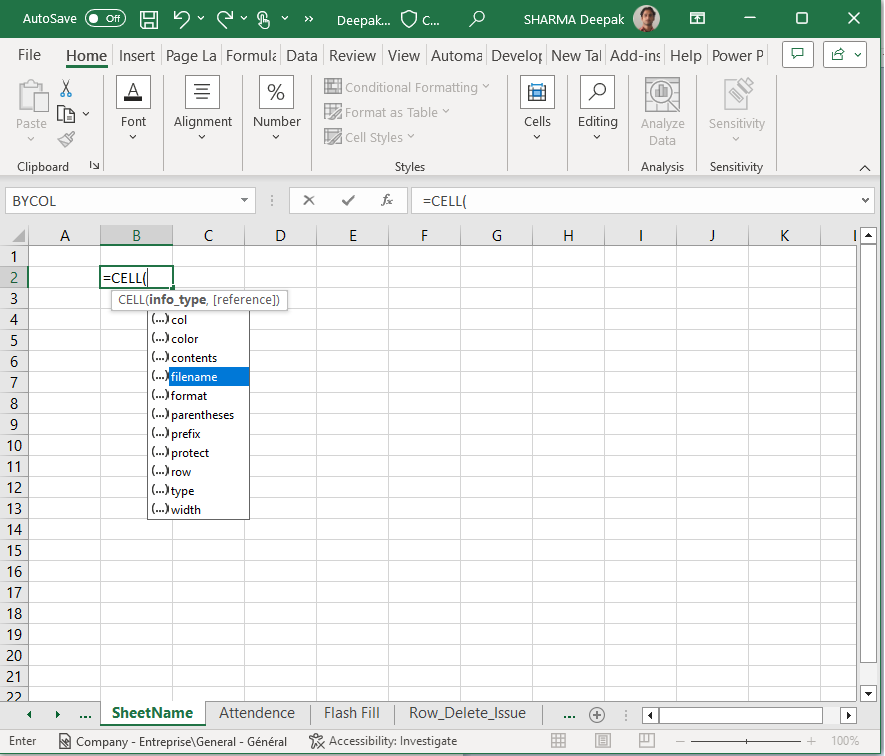
Type “=CELL” & press TAB, select option “filename” & press TAB, close the bracket, press ENTER.


This will give you the whole address of the Sheet, including the file name, folder name etc.

But we need to take only the File name.

So, for this purpose I will use MID, FIND Functions along with CELL.

Refer to the below formula.

=MID(CELL("filename"),FIND("[",CELL("filename"))+1,FIND(".",CELL("filename"))-FIND("[",CELL("filename"))-1)


How to get Excel Sheet Name


Hi Learners, in this blog post I will share how you can get the Excel sheet name.

Select a cell.


Type “=CELL” & press TAB, select option “filename” & press TAB, close the bracket, press ENTER.


This will give you the whole address of the Sheet, including the file name, folder name etc.


But we need to take only the Sheet name.

So, for this purpose I will use MID, FIND Functions along with CELL.

Refer to the below formula.

=MID(CELL("filename"),FIND("]",CELL(("filename")))+1,30) [Max. Length of Sheet name = 30 Char]


Change the “SheetName” to “SheetName_1”. It should read the new sheet name.


How to use Flash fill in MS Excel?


How to use Flash fill?

Hello friends, in this blog I will teach you how you can use Flash fill option in MS Excel.

Friend it is a magical option/tool.

It follows the pattern and takes action as per this pattern.

In below example, I have a column having complete name; first and last name in single cell.

I want to set First name and Last name in separate cells.

In Column C ( First Name) I write the first name; Suresh and hit the enter button.

Now go to ‘Data >> Flash Fill’ & click over there or just press ‘Ctrl + E’ and it will put the First names in the respective Rows.


Now type Last Name in column D, ‘Sharma’ and press enter.

Press ‘Ctrl + E’ and like before all last names will be set in column D in respective Rows.


How to use SUMIFS function in MS Excel?

In mathematics or any calculation, addition is the basic function or calculation, but sometimes we need to add some data with multiple conditions or criteria.

To do the conditional addition in MS excel there is a method for this task and this is very easy as well.

So let’s start doing SUMIFS in MS Excel.

What is SUMIFS function: This function adds the cells specified by a given condition or criteria.

Difference in SUMIF and SUMIFS is you can apply more than one criteria.


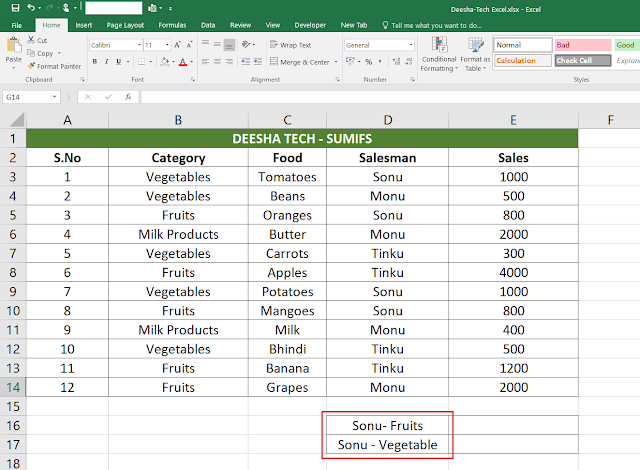
Open your MS excel file, put some data into it. For you, I have collected some data in the file as shown in below picture.

In first column (A) I have ‘S.No’, in second column (B) there is list of ‘Category’, in third (C); ‘Food’, fourth (D): ‘Salesman’ and in Fifth (E) there is ‘Sales’.


Here we want to find the sales done by the salespersons. If I want salesperson’s sale of Fruits and Vegetable separately then it should be calculated automatically.

In this example, I will calculate for Sonu’s sales for Fruits and Vegetables.


  Type ‘=SUMIFS’ in Cell E16 beside the Cell D16 (Sonu-Fruits), press the ‘tab’ key, function will be selected.


Now it is asking for

‘sum_range’, ‘criteria_range1’, and ‘criteria1’, and ‘criteria_range2’, and ‘criteria2’ so on.

sum_range: this is the range, which has to be summed, numerical value which are to be added.

I select the range from E3 to E14, since sales data is in column ‘E’.


criteria_range1 : select the range ( in column) with which you want to match the criteria1.

For example, in our case we want the total sales for category (Fruits & vegetables) by the salesmen, so we will select range from ‘Category’ (Column B).

Therefore, I select range from B3 to B14 and type ‘,’.


Now next is ‘criteria1’.

criteria1 : It refers to the first criteria for which SUM has to be done, this is the condition, in fact.

For this, I type “Fruits”. Since we want sales for Fruits only.


criteria_range2 : select the range ( in column) with which you want to match the criteria2.

For example, in our case we want the total sales by the salesmen, Sonu, so we will select range from ‘Salesman’ (Column D). So I select range from D3 to D14.


Now next is ‘criteria2’.

criteria2 : It refers to the second criteria for which SUM has to be done.

For this, I press ‘,’ then type “Sonu”, close the bracket and hit the ‘Enter’ key.


So, now we have the data of sales by Sonu, he sold Fruits of Rs. 1600 (800 + 800 = 1600).

Now I calculate the sales of Vegetables by Sonu.

Copy the formula; do not copy the cell, copy the text only and paste in cell E17 beside cell D17 (‘Sonu-Vegetable’) like below picture.


Change the “Fruits” into “Vegetables” and hit the ‘Enter’ key, it will sum the sales of Sonu for Vegetables.


You have the total sales of Sonu for vegetables only.

Sonu’s Total Sales for Vegetables = 1000 + 1000 = 2000.


So in the same manner you can make addition with various criteria or conditions.

So this all was about adding data for multiple specific criteria using SUMIFS function in MS Excel.


How to use SUMIF function in MS Excel?

In mathematics or any calculation, addition is the basic function or calculation, but sometimes we need to add some data with some condition. To do the conditional addition in MS excel there is a method for this task and these are very easy as well.

So let’s start doing SUMIF in MS Excel.

What is SUMIF function: This function adds the cells specified by a given condition or criteria.


Open your MS excel file, put some data into it. For you, I have collected some data in the file as shown in below picture.

In first column (A) I have ‘S.No’, in second column (B) there is list of ‘Category’, in third (C); ‘Food’, fourth (D): ‘Salesman’ and in Fifth (E) there is ‘Sales’.


Here we want to find the sales done by the salespersons. I want if I enter the name of the salesperson, total sales should be calculated automatically.

Like if I put Sonu in a cell then it should give me total sales by Sonu.

Like if I put Tinku in a cell then it should give me total sales by Tinku.


Type ‘SUMIF’, press the ‘tab’ key,  function will be selected.


Now it is asking for

range, criteria, and sum_range.

Range : select the range ( in column) with which you want to match the criteria.

For example, in our case we want the total sales for the salesmen, so we will select range from salesmen’s name.

So I select range from D3 to D14.


Now next is ‘criteria’.

Criteria : It refers to the criteria for which SUM has to be done.

For this, I press ‘,’ then select D16 cell reference, where I will put the name of salesman for which I want the total sales.


Now comes the ‘sum_range’.

Sum_range: this is the range, which has to be summed.

I select the range from E3 to E14, since sales data is in column ‘E’.


So total sales done by Sonu is 3200, you can verify it by adding Sonu’s sales separately.

Sonu: 1000 + 800 + 600 + 800 =  3200.


Now copy the formula, do not copy the cell, copy the test in the cell only and paste in Monu like below picture.


Change the Criteria from D16 to D17 and press ‘Enter’.


So total sales done by Monu is 4900, you can verify it by adding Monu’s sales separately.

Monu: 500 + 2000 + 400 + 2000 =  4900.

Now do the same procedure for Tinku.

Now copy the formula, do not copy the cell, copy the test in the cell only and paste in Tinku and change the Criteria from D17 to D18 and press ‘Enter’, like below picture.


So total sales done by Tinku is 6000, you can verify it by adding Tinku’s sales separately.

Tinku: 300 + 4000 + 500 + 1200 = 6000.


So this all was about adding data for a specific criteria using SUMIF function in MS Excel.


MS Excel Logical Functions

Logical functions in Excel are powerful tools that help you make decisions based on conditions. Whether you're comparing values or testi...

Post Count

Loading...